---
description: Guide to browsing, searching, playing, editing, downloading, and sharing music through Koel's web interface.
---
# Using the Web Interface
Koel’s web interface is designed to be as simple and intuitive as possible, drawing inspiration from the best music
players out there. Here’s a quick rundown of what you can do with it.
## Browsing and Searching for Music
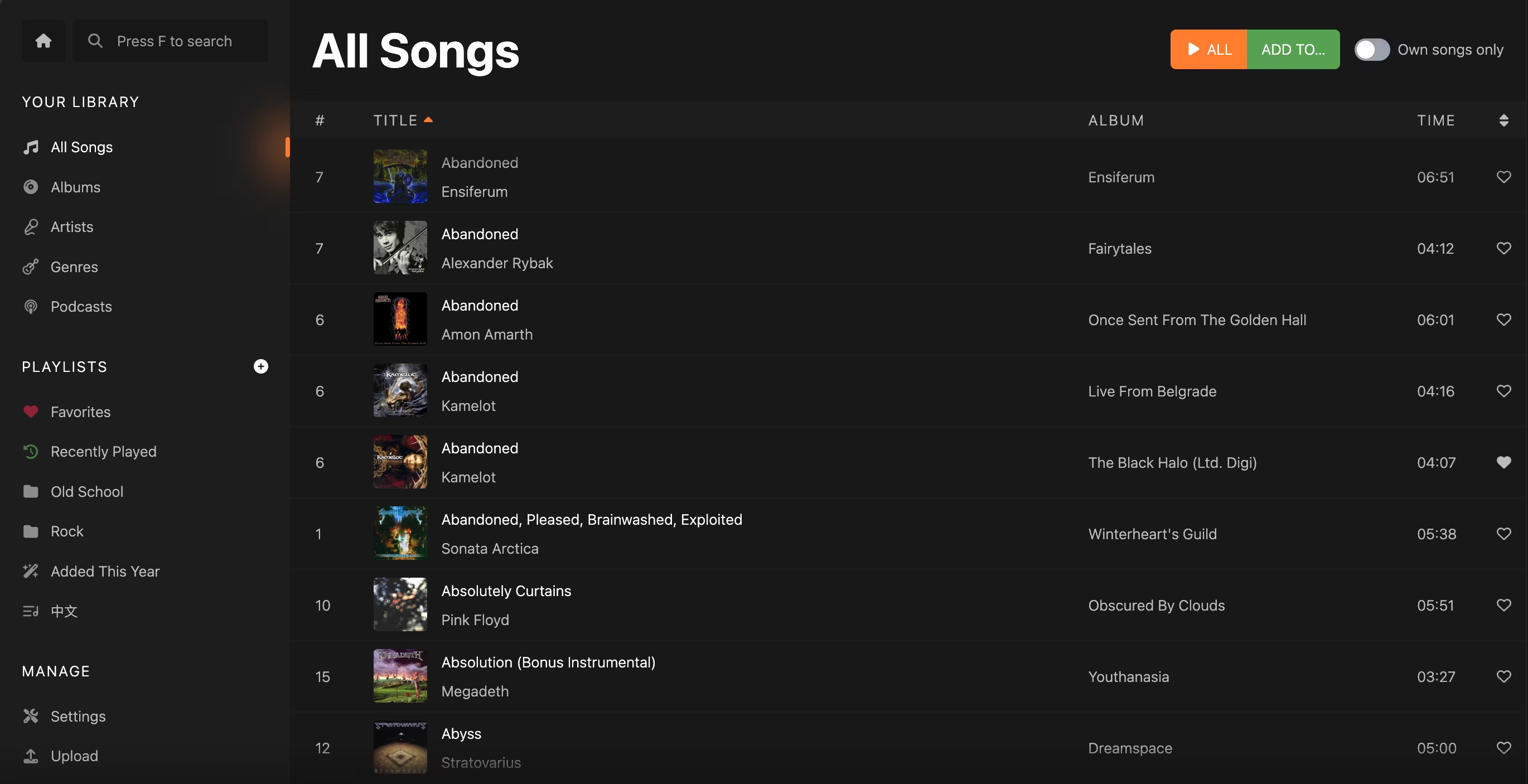
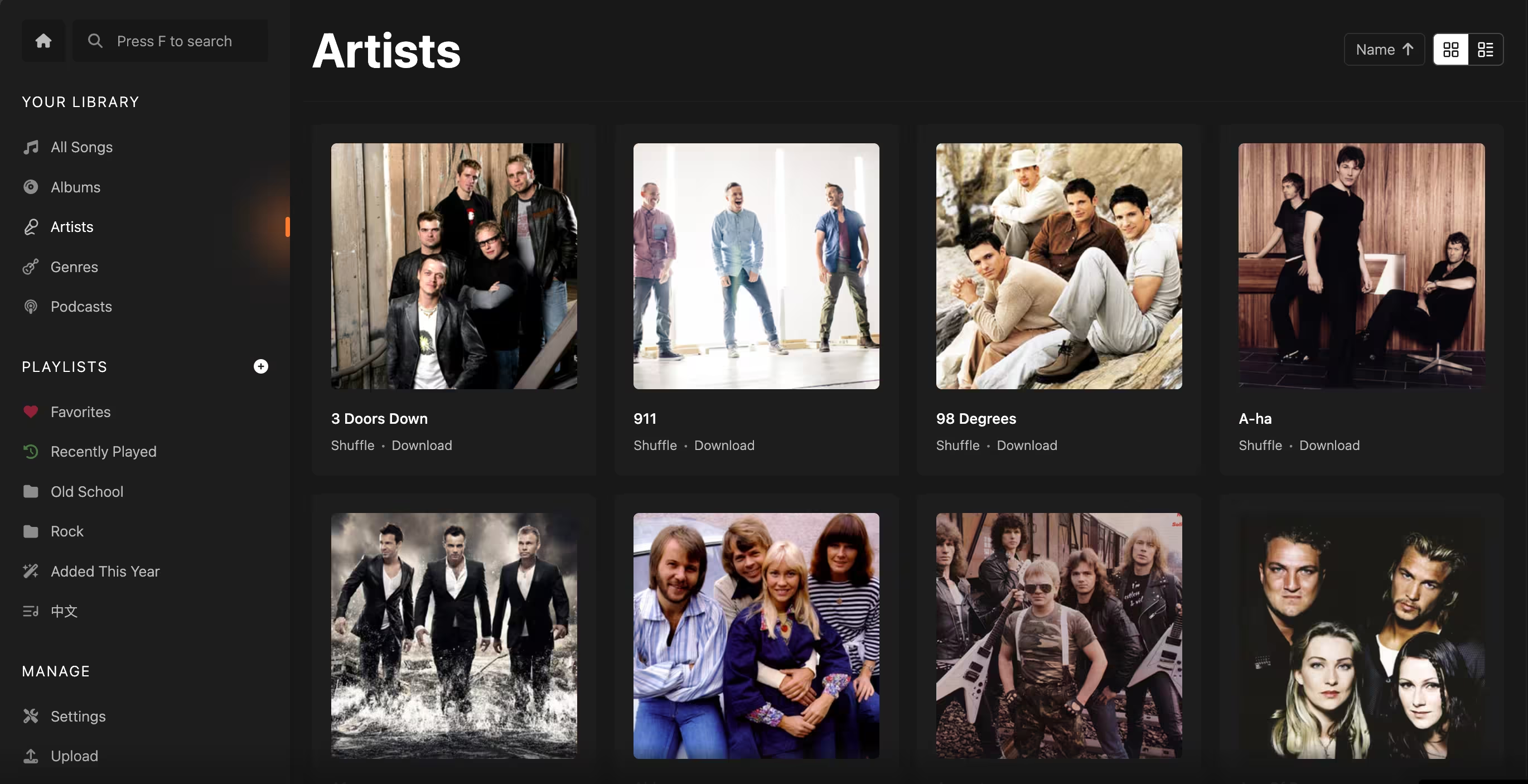
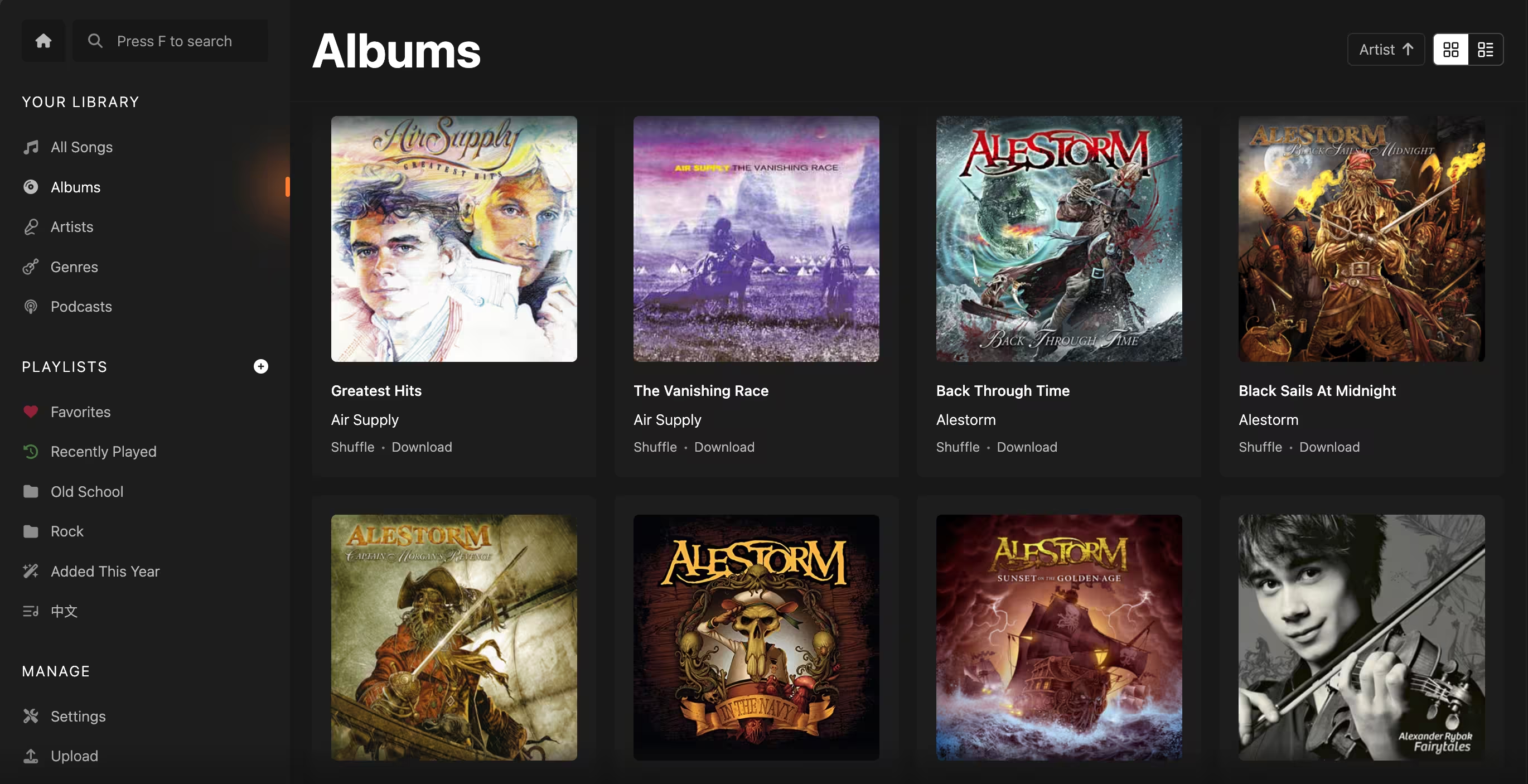
The navigation bar on the left side of the screen is where you can find all the main features of Koel.
You can browse your music library by songs…
artists…
albums…
or genres:
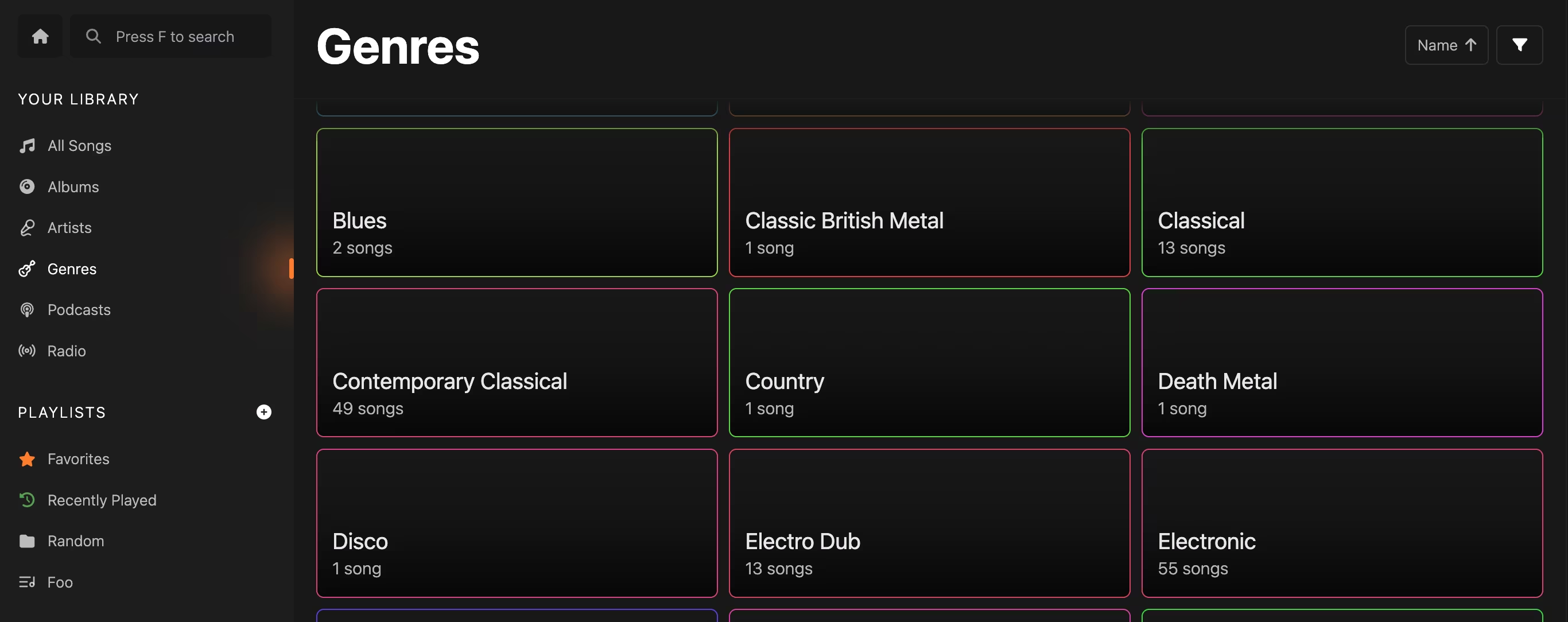
You can click on any artist, album, or genre name to see all the songs that belong to it.
On the artist and album screens, you can also find other albums and songs by the same artist as well as extra metadata
like the artist or album's information when [configured](../service-integrations).
On any screen with a song list (a "song-list screen") you can:
* Sort the list by clicking on the column headers
* Filter the list by typing in the filter box (marked with )
* Select a song by clicking on it. To select multiple songs, hold down Shift or Ctrl/Cmd while
clicking.
* Drag and drop one or more songs to reorder them when applicable
* Drag and drop one or more songs to applicable menu items to the left to perform actions like adding to a playlist,
queueing, or marking them as favorite
* Right-click on a song to bring up a context menu with options to play, queue, mark as favorite, add to a playlist, and
more
To search globally for songs, artists, and albums, see [Instant Search](./search).
## Streaming Music
Play a song by double-clicking on it or pressing Enter on either a song list row or a song card.
Queue a song (or multiple songs) by right-clicking and choose one of the Queue options, or by dragging and dropping it
into the Queue icon in the footer.
You can use the dedicated button (with the icon) to shuffle the
current list or the selected songs.
To play in order instead of shuffling, hold down Alt/Option while clicking the button.
When a song is playing, you can control playback using the buttons at the bottom of the screen as well as
rewind/fast-forward the song by clicking and dragging the progress bar.

From the same area, you can also:
* click the rotating cover art to navigate to the Queue screen and scroll to the currently playing song
* like/unlike the current song
* switch between repeat modes
* toggle the Queue screen
* show the visualizer
* show the equalizer
* control the volume
* toggle full-screen mode
Right-clicking the footer area brings up the context menu for the currently playing song.
## Editing Songs
As a user with `manage songs` permission (Community edition) or the song owner (Koel Plus), you can edit a song's metadata by right-clicking on it and
choosing "Edit…".
A dialog will appear, allowing you to change the song's title, artist, album, genre, lyrics, and more.
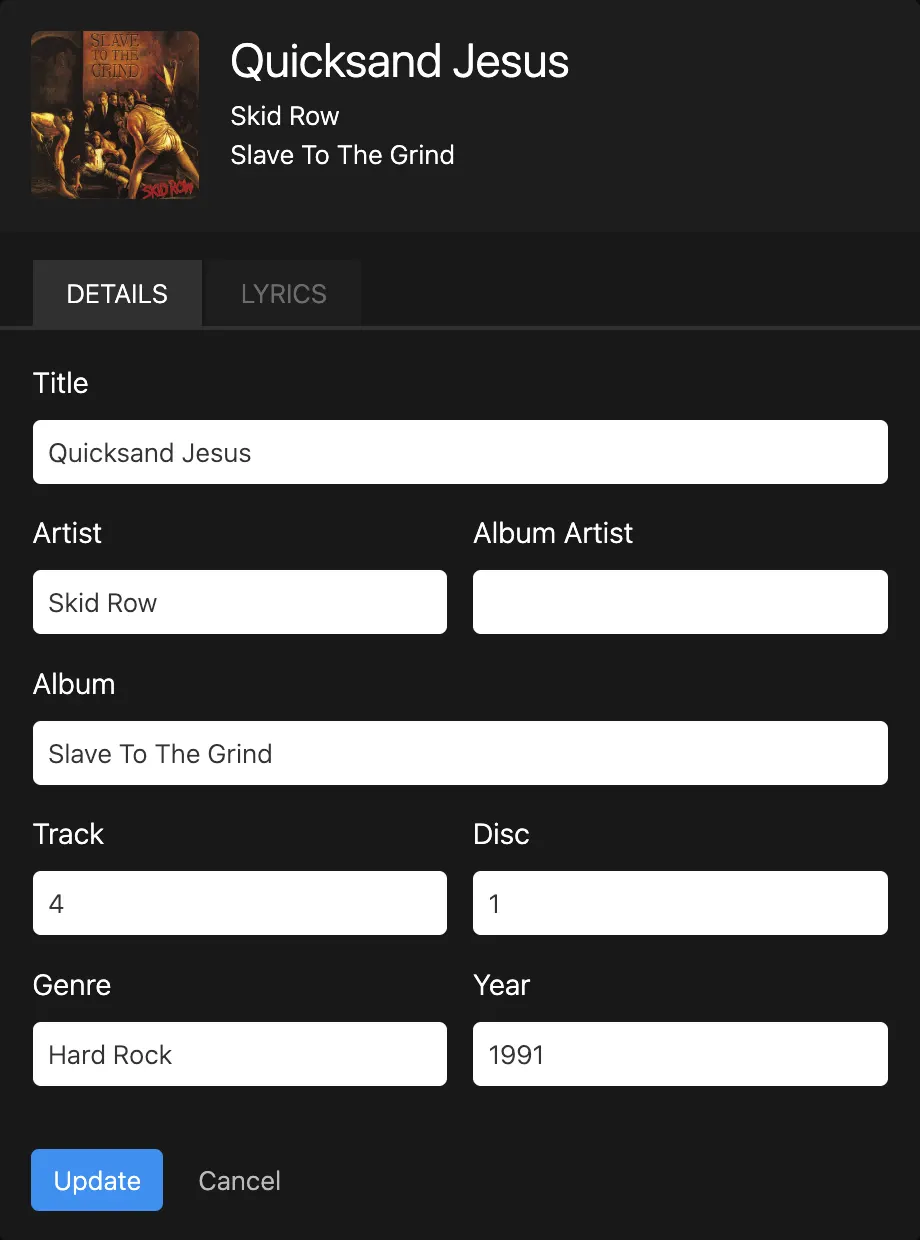 You can also edit multiple songs at once, in which case the changes will be applied to all of them.
## Downloading Songs
If `ALLOW_DOWNLOAD` is set to `true` (the default value) in your `.env` file, you can download a song by right-clicking
on it and choosing "Download."
You can also download several songs, all songs from an album, all songs by an artist, or a whole playlist as a zip file
via the "Download" buttons found on according screens or context menus.
This feature requires the [`zip` extension](https://www.php.net/manual/en/book.zip.php) to be installed and enabled on
the server.
### Download Limit
By default, there is no limit to the number of songs that can be downloaded at once.
However, it is recommended to set a limit via the `DOWNLOAD_LIMIT` environment variable to avoid excessive memory usage
and disk space consumption during zip file creation.
For example, setting `DOWNLOAD_LIMIT=100` will prevent downloading more than 100 songs at once.
A value of `0` (the default) means no limit. Single-song downloads are always allowed regardless of this setting.
## Deleting Songs
As a user with `manage songs` permission (Community edition) or the song owner (Koel Plus), you can delete a song by
right-clicking on it and choosing "Delete from Filesystem."
You'll be prompted to confirm the deletion, and once confirmed, the song will be removed from the database and the
filesystem.
:::danger Backup on Delete
By default, Koel keeps a backup of the song before deleting it.
You can disable this behavior by setting `BACKUP_ON_DELETE` to `false` in your `.env` file, but be aware that this will
make it impossible to recover a song once it's deleted.
:::
## Share and Embed a Song
Share a song by right-clicking on it and choosing _Share → Copy URL_.
This will copy a URL to the clipboard that can then be shared with anyone with a Koel account.
You can also embed a song for public sharing by right-clicking on it and choosing _Share → Embed…_.
See [Embedding](./embedding) for more details.
## Keyboard Shortcuts
Koel has a number of keyboard shortcuts to make it easier to navigate and control playback.
Note that these shortcuts are only triggered when the focus is not on an input field (including the volume control and
the music track)
or a textarea.
* h shows the Home screen
* q toggles the Queue screen
* f puts the focus into the search box and opens the [instant search](search.md) screen
* Enter plays a song. If multiple songs are being selected, Enter adds them to the bottom of the
queue, Shift+Enter queues them to top. Adding a Cmd or Ctrl into the combo
plays the first selected song right away.
* Space toggles playback
* j plays the next song in queue
* k plays the previous song in queue
* l marks/unmarks the current song as favorite
* r circles through repeat modes (no repeat, repeat all, repeat one)
* → seeks forward 10 seconds
* ← seeks backward 10 seconds
* ↑ increases volume by 10%
* ↓ decreases volume by 10%
* m mutes/unmutes
* Cmd/Ctrl+a selects all songs in the current song-list screen when the list is focused
* Delete removes selected song(s) from the current queue/playlist
With a browser that supports [MediaSession](https://developer.mozilla.org/en-US/docs/Web/API/MediaSession) — basically,
all modern browsers — you can control Koel using hardware media keys without even having Koel _or the browser_ focused.
You can also edit multiple songs at once, in which case the changes will be applied to all of them.
## Downloading Songs
If `ALLOW_DOWNLOAD` is set to `true` (the default value) in your `.env` file, you can download a song by right-clicking
on it and choosing "Download."
You can also download several songs, all songs from an album, all songs by an artist, or a whole playlist as a zip file
via the "Download" buttons found on according screens or context menus.
This feature requires the [`zip` extension](https://www.php.net/manual/en/book.zip.php) to be installed and enabled on
the server.
### Download Limit
By default, there is no limit to the number of songs that can be downloaded at once.
However, it is recommended to set a limit via the `DOWNLOAD_LIMIT` environment variable to avoid excessive memory usage
and disk space consumption during zip file creation.
For example, setting `DOWNLOAD_LIMIT=100` will prevent downloading more than 100 songs at once.
A value of `0` (the default) means no limit. Single-song downloads are always allowed regardless of this setting.
## Deleting Songs
As a user with `manage songs` permission (Community edition) or the song owner (Koel Plus), you can delete a song by
right-clicking on it and choosing "Delete from Filesystem."
You'll be prompted to confirm the deletion, and once confirmed, the song will be removed from the database and the
filesystem.
:::danger Backup on Delete
By default, Koel keeps a backup of the song before deleting it.
You can disable this behavior by setting `BACKUP_ON_DELETE` to `false` in your `.env` file, but be aware that this will
make it impossible to recover a song once it's deleted.
:::
## Share and Embed a Song
Share a song by right-clicking on it and choosing _Share → Copy URL_.
This will copy a URL to the clipboard that can then be shared with anyone with a Koel account.
You can also embed a song for public sharing by right-clicking on it and choosing _Share → Embed…_.
See [Embedding](./embedding) for more details.
## Keyboard Shortcuts
Koel has a number of keyboard shortcuts to make it easier to navigate and control playback.
Note that these shortcuts are only triggered when the focus is not on an input field (including the volume control and
the music track)
or a textarea.
* h shows the Home screen
* q toggles the Queue screen
* f puts the focus into the search box and opens the [instant search](search.md) screen
* Enter plays a song. If multiple songs are being selected, Enter adds them to the bottom of the
queue, Shift+Enter queues them to top. Adding a Cmd or Ctrl into the combo
plays the first selected song right away.
* Space toggles playback
* j plays the next song in queue
* k plays the previous song in queue
* l marks/unmarks the current song as favorite
* r circles through repeat modes (no repeat, repeat all, repeat one)
* → seeks forward 10 seconds
* ← seeks backward 10 seconds
* ↑ increases volume by 10%
* ↓ decreases volume by 10%
* m mutes/unmutes
* Cmd/Ctrl+a selects all songs in the current song-list screen when the list is focused
* Delete removes selected song(s) from the current queue/playlist
With a browser that supports [MediaSession](https://developer.mozilla.org/en-US/docs/Web/API/MediaSession) — basically,
all modern browsers — you can control Koel using hardware media keys without even having Koel _or the browser_ focused.